Why Is My Computer Not Seeing My iPhone? (Fix Guide)
The “computer not recognizing iPhone” issue is a common problem that many iPhone users occasionally face. This connection issue usually appears when trying to connect an iPhone to a Windows computer. The problem can occur for several different reasons. So, how can you fix the iPhone not connecting to computer issue?
Why Is the Computer Not Recognizing the iPhone?
There may be various reasons why your computer cannot detect your iPhone. One of the most common causes is a worn or damaged cable used for the connection. If the cable has wear, tear, or loose contact, a stable connection may not be established.
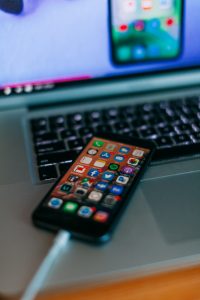
Additionally, if the iPhone screen is locked during the connection process, the computer may fail to recognize the device properly. Another possible reason is that the iPhone battery may be completely drained when connected via USB. Below are the most effective solutions to fix the computer not recognizing iPhone problem.
Solutions to Fix Computer Not Recognizing iPhone
- Update USB Drivers
- Use a Different Cable
- Update the iPhone Operating System
- Unlock the iPhone Screen
- Restart Apple Mobile Device Support Service
Update USB Drivers
If your computer is not recognizing your iPhone, updating the USB drivers may resolve the issue. It is important to maintain an active internet connection during the driver update process. After installing the latest drivers, restart your computer and try connecting your iPhone again.
Use a Different Cable
If you are experiencing connection problems, the issue may be caused by a damaged cable. In this case, using a different USB cable is a good solution. Using an original cable when connecting your iPhone to the computer helps ensure faster and more stable data transfer.
Update the iPhone Operating System
Some iPhone users continue using outdated iOS versions. Devices that are not updated regularly may encounter connection problems when linked to a computer. Keeping your iPhone updated can help prevent and fix these issues.
Outdated drivers on your computer can also cause the iPhone not to appear. Especially when USB drivers are not up to date, connected devices may fail to be recognized.
Unlock the iPhone Screen
If the iPhone screen is locked, the computer may not detect the device. To establish a proper connection, unlock your iPhone before connecting it to the computer. When prompted, make sure to allow file access on your phone.
Restart Apple Mobile Device Support Service
If the Apple Mobile Device Support service is not working properly on your Windows computer, the system may fail to recognize your iPhone. To fix this, type “Services” into the Windows search bar and open the Services app. Locate Apple Mobile Device Support, stop the service, and then start it again to resolve the issue.